Add a batch of images
Add the images you want to edit. Drop files, choose files or paste a screenshot.
 Works on mobile No model download
Background removal, made simple
Remove backgrounds, change colors, resize and add margins. One image or a whole batch.
Free · No account · No watermark
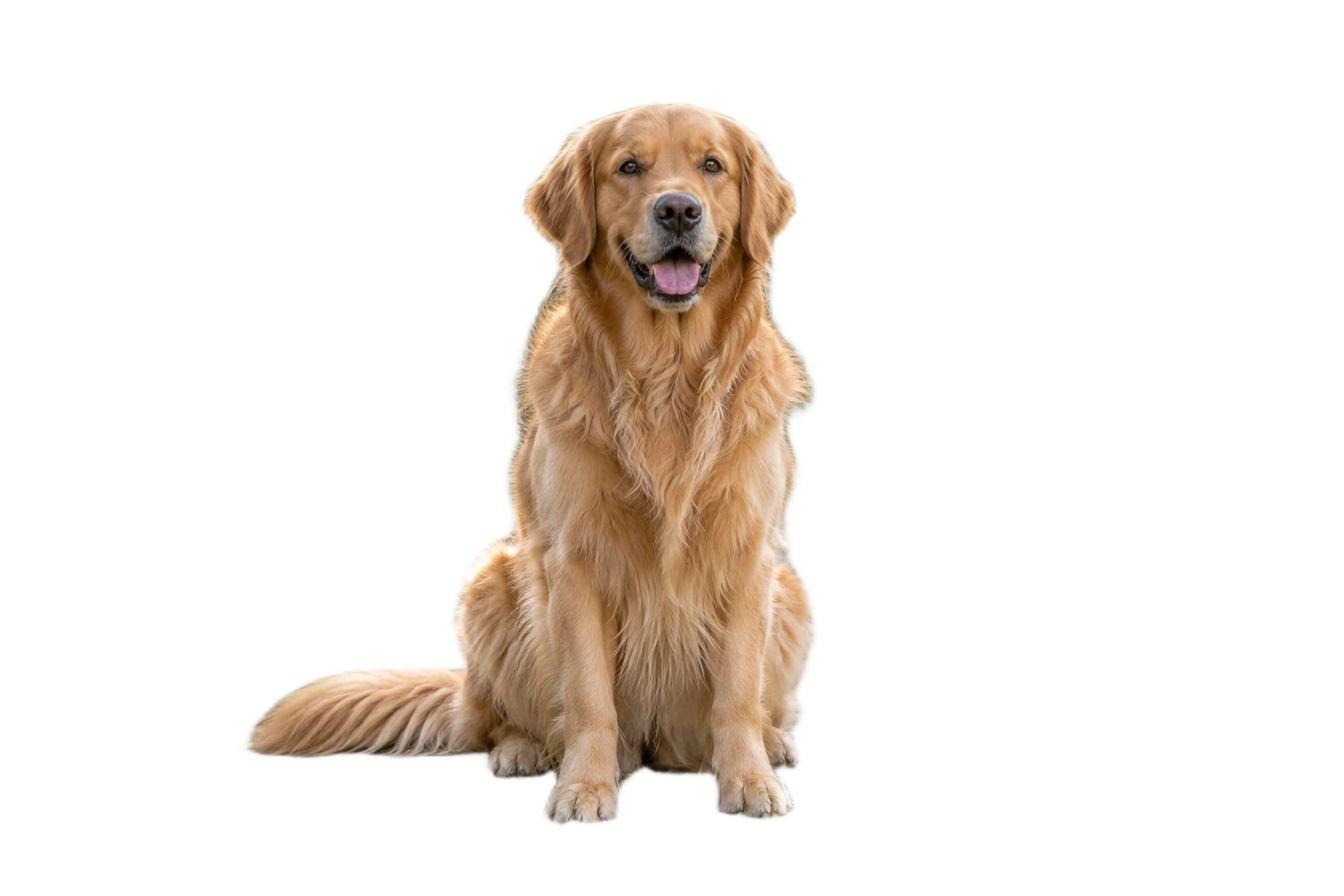
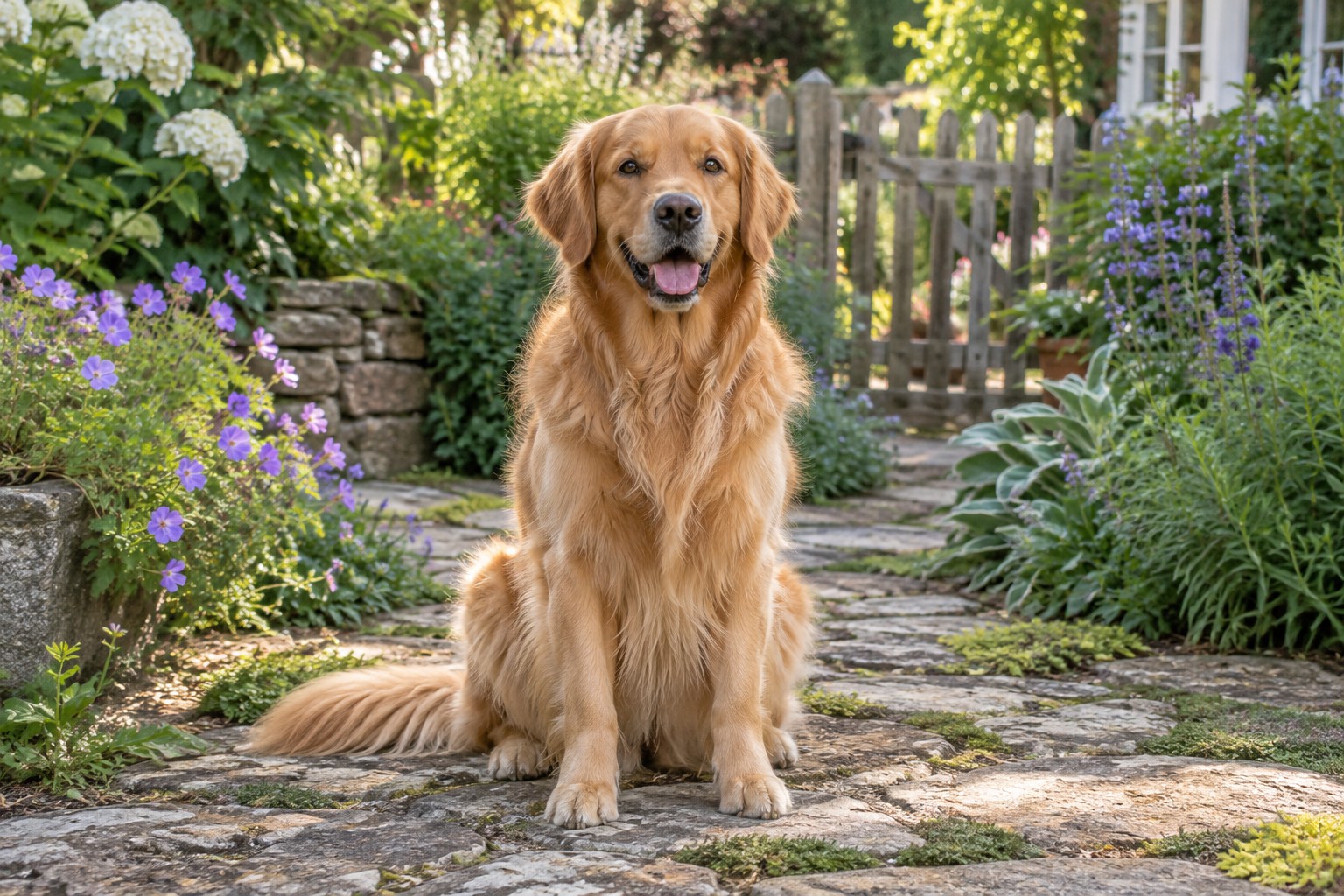
One image or a whole batch. Make it yours.
Drop multiple files or paste an image
JPG, PNG, WebP · Up to 20 images · 20 MB per image
Start with these examples
AI-generated originalsClick an example image or use the sample button above. Your processed images will appear here for review.
Ready. Add images to begin.
Background removal uploads images · Download results before leaving
From original to finished
Add the images you want to edit. Drop files, choose files or paste a screenshot.
Choose colors, dimensions and margins. Options are saved on this device for your next visit.
Inspect edges and details. Download individually or as a ZIP. Retry failed images separately.
Up to 20 images and 100 MB per batch; 20 MB, 16 megapixels and 8192 px per side per image. Convert animation or SVG to static JPG, PNG or WebP first.
Background removal uses images up to 2048 px on the longest side. Larger inputs are reduced; enlarging the output adds no detail. Output: 128–3000 px per side, 150 MB total.
Glass, mesh, fine chains, hair, multiple subjects and similar colors may need extra review. No manual touch-up tool is included. Disable removal to keep the original background or use an existing transparent image.
No model downloads on phones or computers. Wait time depends on upload speed and server load. Stopping prevents later uploads; submitted images may still process. Completed results remain available. Reloading or closing loses undownloaded results.
Background removal and image exports are free, with no account required and no added watermark. You can download individual results or a ZIP of completed images. File-size, batch and output limits still apply.
Choose images, drag them into the upload area or paste a screenshot. Leave background removal enabled, choose a background, size and export format, then start processing. Open the image preview to check the edges before downloading; the sample images let you try the same workflow.
Use static JPG, PNG or WebP images. Each image must be no larger than 20 MB, 16 million pixels or 8192 pixels on either side. Animated images and SVG are not supported; convert them to a static supported format first.
Yes. Add up to 20 images per batch, with a combined input size of up to 100 MB. The chosen settings apply to the batch, which processes one image at a time. Download completed images individually or as a ZIP; failed images can be retried separately. Total generated output is limited to 150 MB.
Choose Transparent as the background and PNG or WebP as the export format. JPG cannot preserve transparency, so choose a solid background when exporting JPG. The checkerboard in the preview indicates transparent areas and is not included in your downloaded image.
After background removal, choose white, a warm background or your own solid color. You can also export a transparent cutout. To keep the original background or arrange an image that is already transparent, turn background removal off; resizing, padding and export then run in your browser without an image upload.
Choose a preset or set a custom width and height from 128 to 3000 pixels per side. Padding controls the space around the image; automatic centering helps position a transparent subject. For background removal, larger images are first reduced to a working image with a longest side of 2048 pixels. Enlarging the output does not restore lost detail.
Hair, fine chains, glass, mesh, multiple subjects and a subject close in color to its background can be difficult to separate. Start with a sharp, well-lit image with a distinct subject and inspect the result in the preview. RinseBg currently has no manual erase or restore brush, so complex results may need further editing in another tool.
Time depends on image size, upload speed and current server load. The progress area shows upload progress and how many images have finished; server processing time is variable. If you see a busy or timeout message, keep the page open and retry the affected image after a short wait. No processing time is guaranteed.
Stop prevents further images from being uploaded and keeps completed results. An image already submitted may still finish processing on the server. If an image fails, use its retry button; you can also download the successful results. Save those results before clearing the batch or closing the page.
With background removal enabled, processing uploads the image to RinseBg’s server. The app handles image data in memory, does not save image files and does not send them to third-party inference services. With background removal off, image arrangement stays in your browser. Server access logs may contain IP addresses, request times and status codes; see the Privacy Policy for more information.
Use a modern browser on a phone or computer; there is no app or AI model to install. Background removal needs an internet connection, and available device memory can affect large batches and ZIP exports. Your browser remembers language and image settings, but not your images or results. Download before refreshing or closing the page; use Contact us in the footer if you need help.